01
Place the iPad correctly
Match the iPad's physical orientation to the seating layout shown on screen. This keeps the virtual player positions aligned with the real table.
Set up your table, connect your players, understand the controls, and solve the most common connection problems.
Table is designed around one shared iPad and the people sitting around it. A little preparation keeps player positions and connections intuitive once the game begins.
Match the iPad's physical orientation to the seating layout shown on screen. This keeps the virtual player positions aligned with the real table.
Except for Golf, each player needs a phone or another device that can open a web page. The iPad remains the shared table.
Connect the iPad and all player devices to the same Wi-Fi network. A personal hotspot can also be shared by one player when needed.
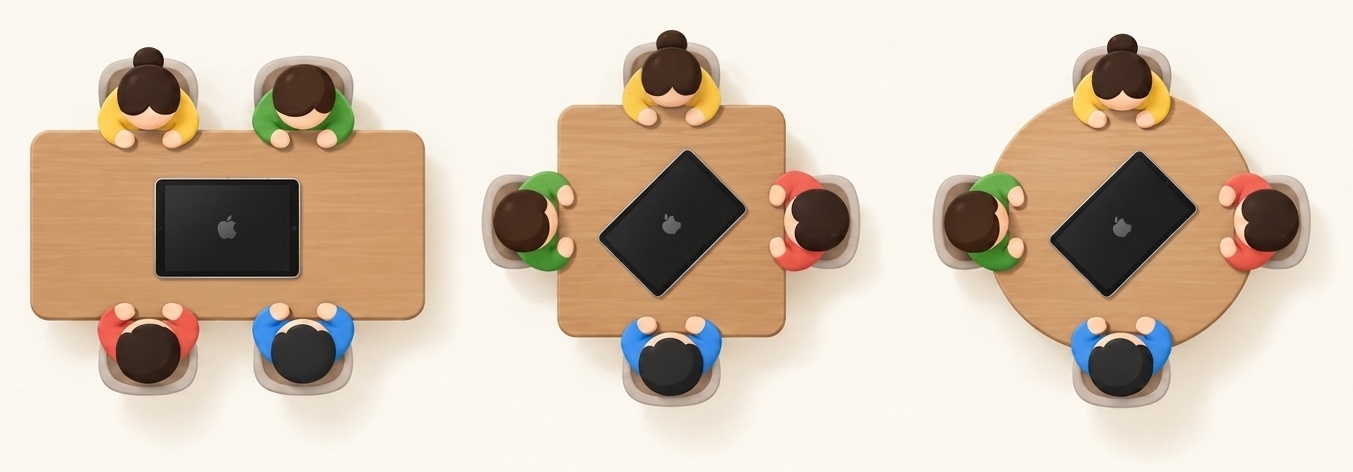
Table uses the same interaction language across games, so players can quickly understand what is selectable, whose turn it is, and where to look for the next instruction.
Orange outlines and highlighted cards show what can currently be selected or used.
A yellow outline marks the current selection; a yellow player ring shows whose turn it is.
If you're unsure what to do next, your phone shows your current action prompt.
If a player disconnects, tap that player's icon on the iPad and scan the new QR code.
Long-press an empty area of the table to open the in-game menu.
Most connection issues come from the local network or browser settings rather than the game itself.
If the steps above do not solve the problem, contact Stillwind and tell us which game you were playing, which iPad model you were using, and what happened.
Contact Stillwind